
Want to bypass the Play Integrity Check even with an unlocked bootloader? If your Android device is rooted and you’re looking for a way to configure Play Integrity using Magisk modules, this guide will walk you through the setup process step by step.
By using TrickyStoreOSS, Integrity Box, and Yurikey Manager, you can configure your device for Play Integrity testing. Follow the instructions carefully and make sure you understand each step before proceeding.
Requirements:
- ROOT Device with Magisk
- TrickyStoreOSS
- IntegrityBox (by MeowNa) – For Integrity Bypass
- Yurikey Manager – For Strong Integrity Bypass
- Some Working Knowledge
Disclaimer: This tutorial is provided for educational and informational purposes only. Rooting and modifying your Android device may cause bootloops, system instability, or other unexpected issues. Proceed at your own risk. Always keep a backup of your important data before making system-level changes. Compatibility and results may vary depending on your device, Android version, and module versions.
How to Set Up Play Integrity Modules
Follow these steps carefully to install and configure the required modules.
Step 1: Enable Zygisk
Open Magisk Manager and navigate to Settings. Find the Zygisk option and enable it.
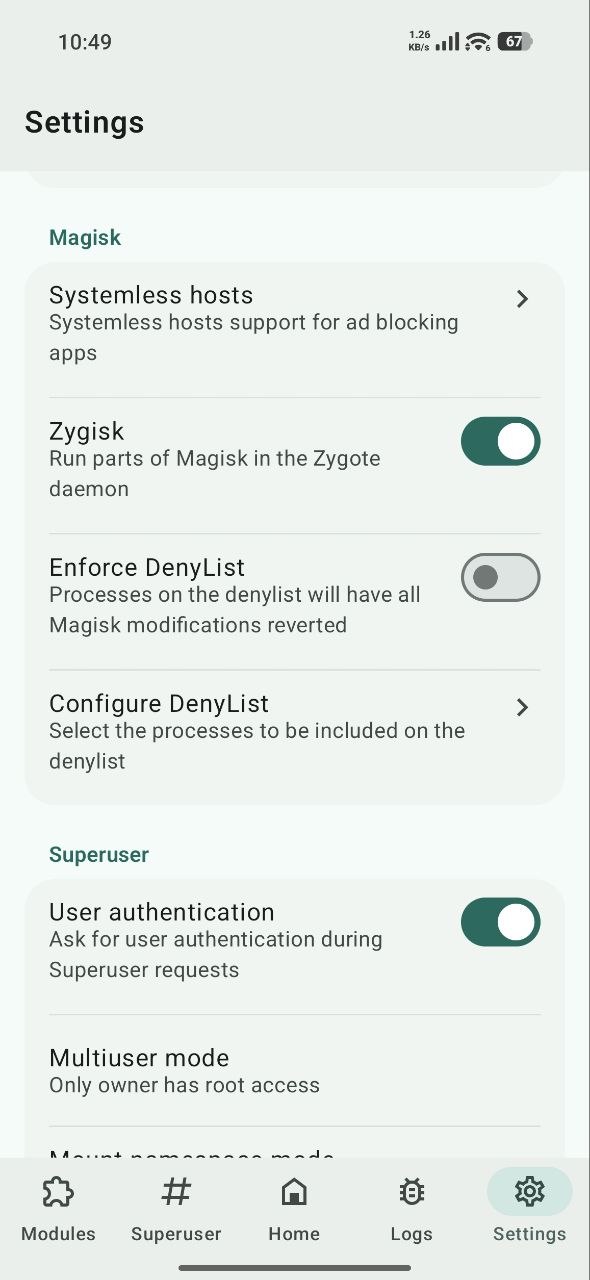
Once enabled, reboot your device to apply the changes.
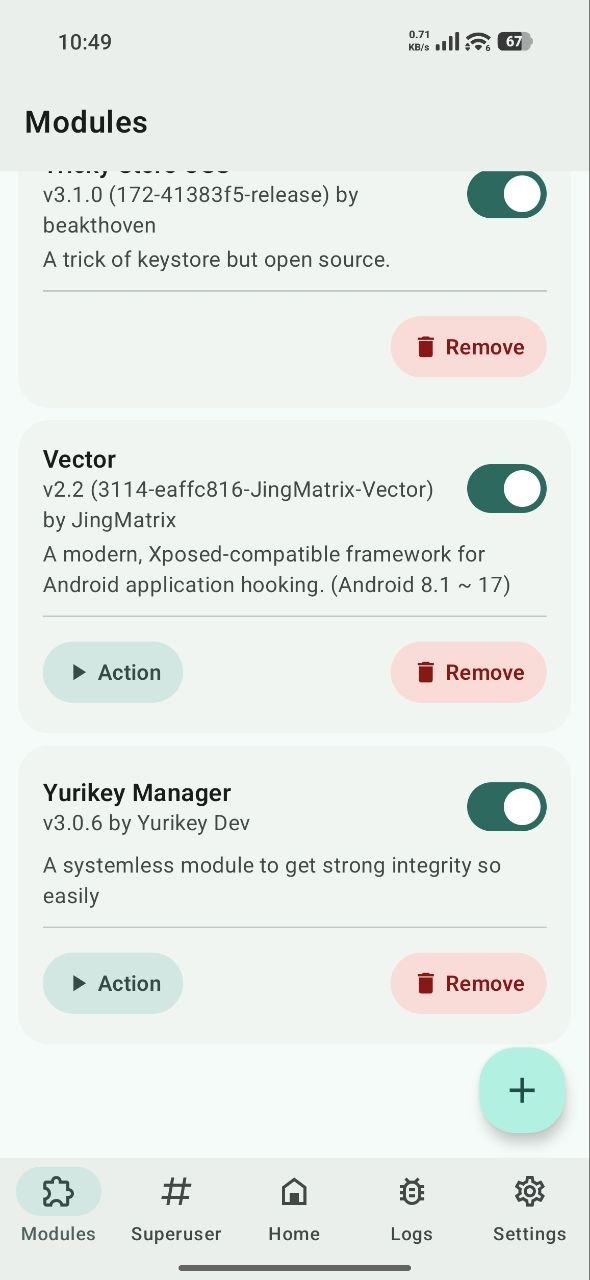
Step 2: Install TrickyStoreOSS and Yurikey Manager
After rebooting, open Magisk Manager and navigate to the Modules section.
Install the following modules using their downloaded ZIP files:
- Yurikey Manager
- TrickyStoreOSS
Make sure both modules are installed successfully.
Step 3: Install Integrity Box
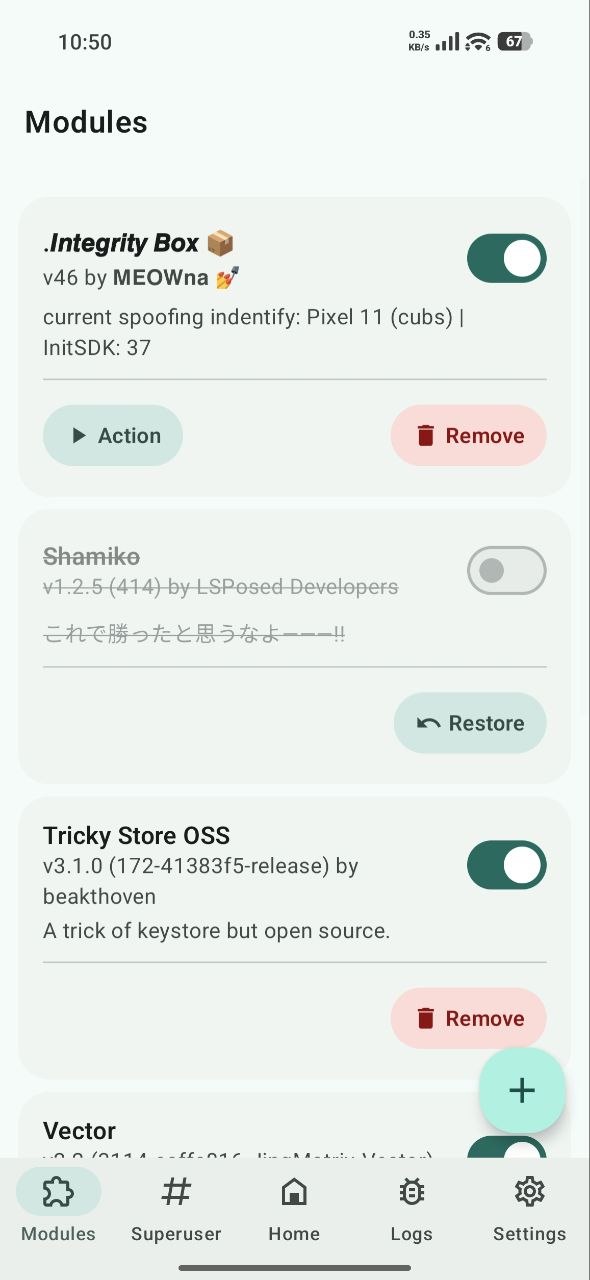
Next, install the IntegrityBox module through Magisk Manager.
During installation, you may see several configuration options. Navigate through the available options using the Volume Up (+) and Volume Down (-) buttons.
You can select the default configuration if you are unsure which options to choose.
Step 4: Reboot Your Device
Once all three modules have been installed, reboot your Android device.
This allows Magisk to load the installed modules properly.
Step 5: Configure the Modules
After your device boots up, open Magisk Manager and navigate to the Modules section.
Find the available action buttons for:
- Yurikey Manager
- Integrity Box
Open their respective configuration interfaces and complete the required setup according to the module instructions.
Step 6: Reboot Again
After completing the module configuration, reboot your device once more to apply the changes.
Step 7: Check Play Integrity Status
Once your device restarts, install a trusted Play Integrity API Checker application and run an integrity check.
Review the results to see which integrity levels your device currently passes.
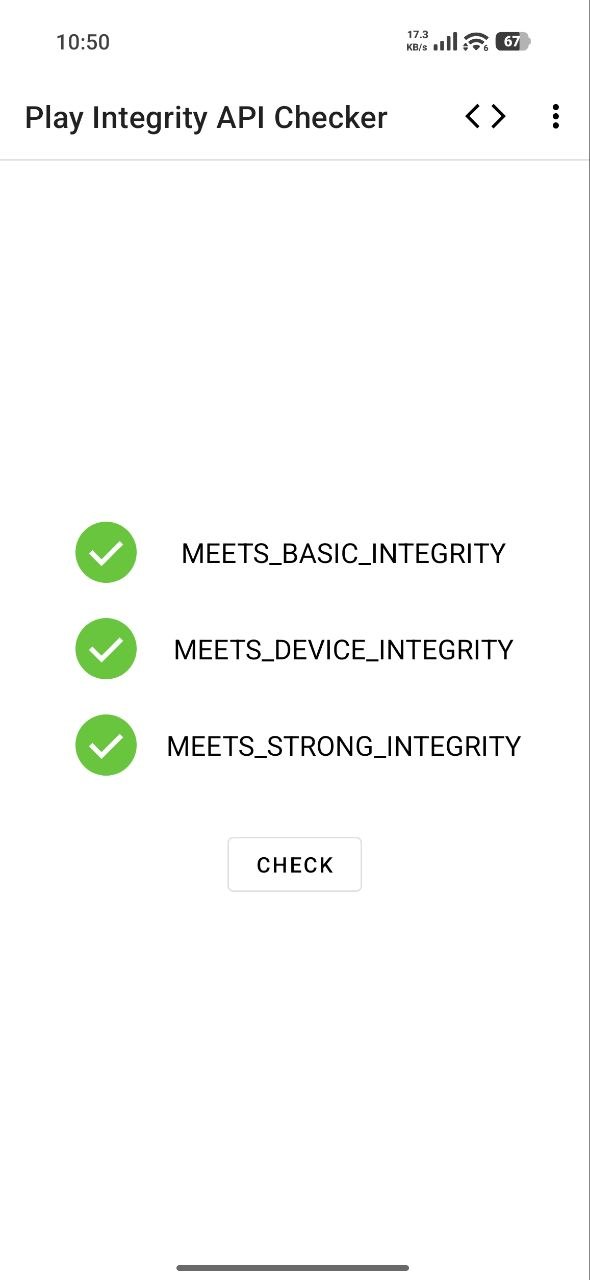
Important: Installing these modules does not guarantee that your device will pass Device Integrity or Strong Integrity. Results depend on hardware-backed key availability, device certification, Android security patches, and Google’s server-side verification.
Final Thoughts
That’s it! You have now completed the basic installation and configuration process for TrickyStoreOSS, Integrity Box, and Yurikey Manager.
Remember that Play Integrity compatibility can change after Android updates, security patches, or changes to Google’s verification system. Always check the official module documentation for the latest compatibility information and troubleshooting instructions.